













Download BetKing — mobile access to the sportsbook, casino and personal account
The query “BetKing download” leads to two different scenarios: installing the BetKing APK file on Android or using a BetKing browser shortcut on iPhone. Below we cover both routes, the system requirements, how to update the client and the typical failures — a white screen, crashes, a network drop while placing a bet. A separate section explains how BetKing sports betting and casino games work on a smartphone and why the balance stays shared with the desktop.
BetKing bookmaker distributes its mobile app via the App Store for iOS and as an APK from the official website for Android. The KingTap feature is available only in the BetKing client — the browser does not have it. At the same time, the BetKing mobile version replicates the full functionality of the desktop.
This material is for information purposes only and is not an invitation to gamble. Gambling involves financial risk. Play is permitted for persons aged 21 and over.
| Parameter | Value |
|---|---|
| Platforms | Android, iOS |
| Source for Android | BetKing APK from the official website |
| Source for iOS | App Store |
| KingTap | App only |
| Mobile version | Full desktop functionality |
| Account currency | Hryvnia (UAH) |
| Price | Free |
BetKing mobile version — access options
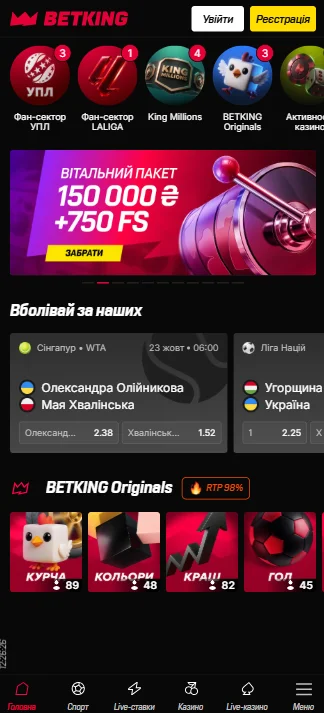
There are three ways to access the BetKing gaming platform from a smartphone: the native client, the browser version and a home screen shortcut. The difference is not cosmetic — your choice determines login speed, whether you get push notifications and access to KingTap. It is easier for a newcomer to start with the browser and then download the BetKing mobile app once it becomes clear which sections they use every day.
Client, browser and home screen shortcut
- BetKing app from the APK: standalone launch, saved session, access to KingTap.
- BetKing browser page: nothing to install, updates happen on the server side.
- “Add to home screen” shortcut: visually mirrors the client icon and opens the site in full-screen mode.
- The personal account, deposits and withdrawals work the same way in all three options.
Smartphone system requirements
- Android 7.0 and newer OS versions.
- iOS 13 or later for stable operation of Safari and WebKit.
- At least 150 MB of free storage for installation and cache.
- 2 GB of RAM — the minimum for the BetKing live section to run without lag.
- A stable internet connection of 2 Mbit/s or faster for streams and live tables.
| Specification | Android / iOS |
|---|---|
| Minimum OS | Android 7.0 / iOS 13 |
| Storage | from 150 MB / from 60 MB cache |
| Installation type | APK / App Store or shortcut |
| Automatic updates | No / Yes |
Download Bet King for Android
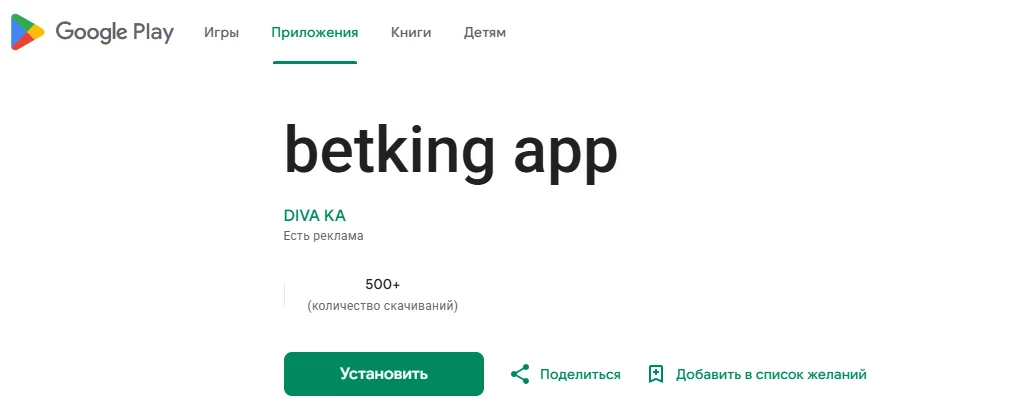
The BetKing bookmaker APK can only be downloaded from the operator's official website — third-party file aggregators substitute builds, which is a direct risk to your payment details. After you tap the download button, the system will ask you to confirm installation from an unknown source: this is standard Android behaviour for any file outside Google Play.
Preparing the phone and permissions
- Check your free storage — at least 150 MB.
- Open the official BetKing bookmaker page in Chrome and download the file using the Android button.
- In “Settings → Security”, allow installation from unknown sources for the browser.
- Open the downloaded APK in the “Downloads” folder and confirm the installation.
- Launch the app, log in through the app or complete registration at BetKing.
- Restore the block on unknown sources to its original state.
The file will not install
- The download was interrupted — delete the file and download the latest version of BetKing again.
- An old build conflicts with the new one's signature — uninstall the previous one.
- An antivirus blocks the package — add it to the exceptions for the duration of the installation.
- The OS version is lower than 7.0 — the client will not launch; the BetKing mobile version remains available.
- Storage is full — clear the gallery or messenger cache.
Bet King on iPhone via Safari
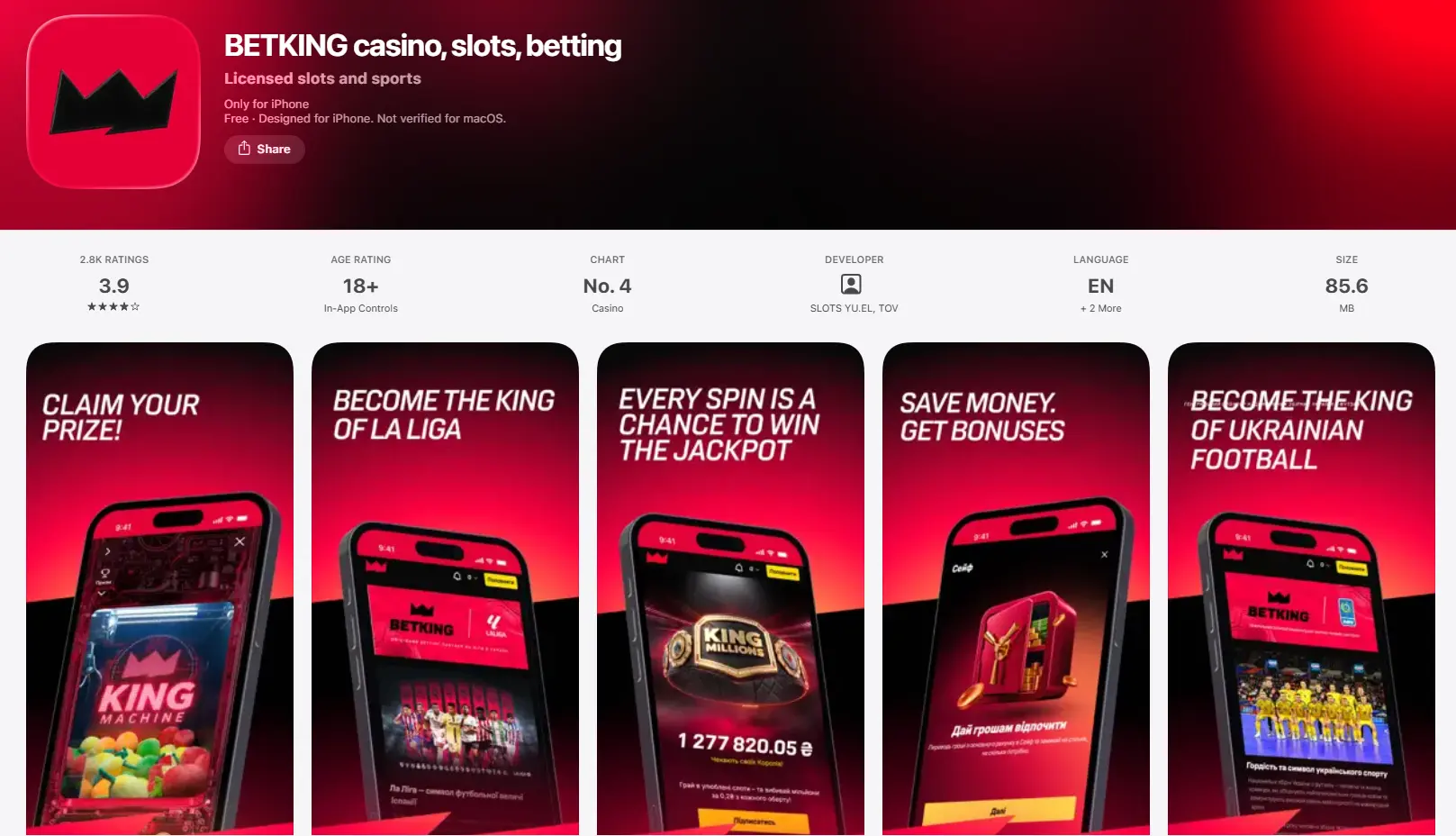
iPhone owners have two working options: download the BetKing casino for iPhone from the App Store if the build is available in your region, or add the site to the home screen. The second method takes up no storage and updates automatically along with the server. Functionally, it is the same BetKing gaming platform — pre-match, live, slots, cashier.
Adding the page to the home screen
- Open the official BetKing operator address in Safari (Chrome for iOS does not offer this option).
- Tap the “Share” icon on the bottom bar.
- Select “Add to Home Screen”.
- Set a name for the shortcut and confirm.
- Launch the icon — the page will open without the address bar.
Full-screen mode and orientation
The BetKing shortcut starts in standalone mode: the interface takes up the whole screen and the browser bar is hidden. Portrait orientation is locked for the bet slip and cashier, while live tables and streams expand horizontally. If rotation does not work, check the orientation lock in Control Centre.
BetKing betting and casino on a smartphone
The mobile interface of the BetKing sportsbook and casino has been rebuilt for thumb use: sections are moved to the bottom menu, and the bet slip is collapsed into a floating button with an event counter. BetKing betting in the app takes two taps — odds and stake. The casino in the app opens in the same window, without switching to a separate domain.
Pre-match, live and a compact bet slip
- Filter by sport and tournament in the top scroll bar.
- BetKing live centre with real-time odds updates.
- Bet slip: single, accumulator, system bet; saved when minimised.
- Accepting odds changes is a separate toggle in the settings.
- Cash out is available from the active bet's card.
Slots and live tables on a touch screen
BetKing slots are adapted to a vertical screen, and the reels scale without cropping. Live dealer games require landscape orientation and a stable connection — on 3G the picture degrades to minimum quality. Demo mode in slots is available before logging in; live tables work only with a real balance.
Balance shared with the desktop
One BetKing account covers all devices. A deposit made from the phone is instantly reflected in the web version, and bet history and bonus balances are synchronised. Verification completed once applies on all platforms — there is no need to resend documents after installing the BetKing client.
Updating the BetKing app
The BetKing Android client is not connected to a store, so there are no automatic updates — when a new build is released, the app shows a banner with a link. Ignoring updates is not a good idea: old versions lose compatibility with payment gateways and the live section API. The security of the BetKing app also depends on how current the build is.
A new build without losing your profile
- Download the latest BetKing APK from the official page.
- Run the file — the system will offer to update the existing app.
- Confirm; your profile data and saved sessions remain.
- Open your BetKing account and check the balance.
Clearing the cache and storage
- “Settings → Apps” → select the BetKing client.
- “Storage” → “Clear cache” (not “Clear data”).
- Restart the app.
- If the problem persists, uninstall and reinstall the app.
Logging in again after an update
After major updates, the session is sometimes reset for security reasons. A repeat BetKing login is needed — login and password or confirmation via your phone number. Biometrics will have to be linked again in the BetKing profile settings. Keep your password in a password manager, not in your phone's notes.
The Bet King app will not launch
Most failures in the BetKing app come down to three causes: a corrupted installation package, an overfilled cache or a lack of RAM. Before contacting BetKing support, check the build version and the remaining free storage — this resolves most of the requests.
White screen and crashes
- Force close the app via the recent apps menu.
- Clear the cache and restart the phone.
- Switch from Wi-Fi to mobile data — there may be blocking at the provider level.
- Reinstall the BetKing client from a fresh official APK.
Network drop while placing a bet
A bet is registered on the BetKing server, not on the device. If the connection dropped after you tapped the button, open the “Bet history” section and check the status — do not duplicate the bet slip before checking. The server rejects a bet that was not registered, and the funds are returned to the balance automatically.
Slow performance on an old phone
On devices with 1–2 GB of RAM, turn off animations in the developer options, close background processes and give up live streams. An alternative is the lighter BetKing browser page without heavy graphics modules.
| Problem | Action |
|---|---|
| APK will not install | Allow unknown sources, download the file again |
| White screen | Clear the cache, reinstall |
| Crashes in live | Lower the stream quality, free up RAM |
| SMS code does not arrive | Check the number in your profile, request it again after 60 s |
| The site will not open | Change the network or DNS |
BetKing app FAQ
Short answers to the questions newcomers most often have before and after installing the BetKing app.
How do I download BetKing on Android?
Open the operator's official website in a browser, tap the Android download button and save the official BetKing APK. Allow installation from unknown sources, run the file and confirm the installation. Do not use third-party file-sharing services — they distribute tampered builds.
Is there a BetKing app for iPhone?
For iOS, a BetKing build is available in the App Store, and if it is not available in your region, there is a home screen shortcut via Safari. Both options give you pre-match, live, games and the cashier. The functionality is identical to the desktop.
Are bets saved after reinstalling?
Yes. Bet history, balance and verification status are stored on the BetKing bookmaker server, not on the device. After logging in again, the data loads automatically. Active bets continue to be settled regardless of the app's state.
How much storage does the client take up?
The BetKing installation package for Android is about 40–60 MB; with the cache, it grows to 150 MB. The cache can be cleared in the BetKing settings without deleting your profile.
This text is for reference only and is not an invitation to take part in gambling. Set deposit limits and do not gamble on credit. If you notice signs of addiction, seek help from specialised services.